
Onboarding Wizard
The Wizard runs in the portal the first time you open a new project.
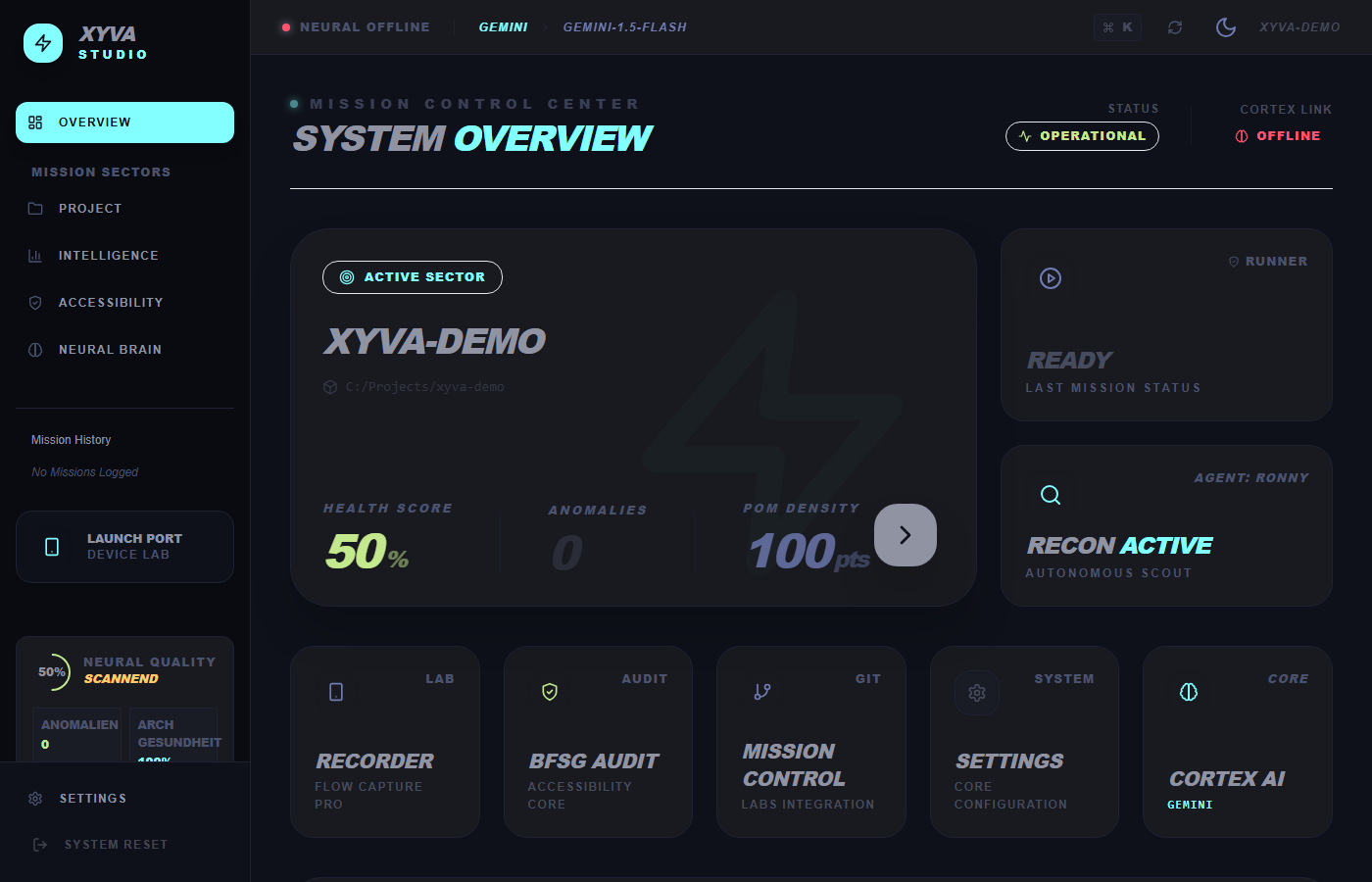 It walks you through four steps and validates each one before moving on.
Overview
┌──────────┐    ┌──────────┐    ┌──────────┐    ┌───────────┐
│ Language │───►│   AI     │───►│ Project  │───►│ Preflight │
│ & Theme  │    │ Provider │    │  Import  │    │  Checks   │
└──────────┘    └──────────┘    └──────────┘    └───────────┘
   Step 1          Step 2          Step 3          Step 4
The Wizard runs entirely in the browser. The local agent supplies project data (file scan, Node/Git versions, Playwright config) over the WebSocket bridge.
Step 1: Language & Theme
Pick English or Deutsch, plus a UI theme. The choice controls all portal labels, tooltips and AI prompt templates.
See Language Selection.
Step 2: AI Connection
Connect a provider — Gemini, OpenAI, Claude, Azure OpenAI, OpenRouter, Groq, DeepSeek, Ollama, LM Studio or your AI Proxy. The agent stores the key encrypted client-side; the raw key never reaches the portal database.
You can also pick Observer Mode and skip the AI step entirely — Runner, Test Hub, Accessibility Auditor and reports all work without it.
See AI Connection.
Step 3: Project Import
The agent scans the project directory and reports:
- Page Object Models, Fixtures, Test files
node_modulespresence and Playwright browser binariesplaywright.config.tsparsed for projects, baseURL, reporter
You confirm the detected paths or scaffold a fresh npm init playwright@latest.
See Project Import.
Step 4: Preflight Checks
The agent validates the environment:
- Node.js version (≥ 20)
- Git availability (≥ 2.30)
- Filesystem write permissions for the project
- Playwright browser binaries
Red checks block completion until resolved. Green means you're ready.
See Preflight Checks.
TIP
Re-run the Wizard at any time from Portal → Settings → General → Re-run Wizard. Useful when switching projects or rotating AI keys.
After completion
Once all four steps pass, the portal opens the project Overview dashboard. Test Hub and Runner load with the agent's file tree; if AI was configured, Brain and Swarm light up.
Per-project Wizard state is stored as portal-side metadata, keyed by the project root path the agent reports.
Troubleshooting
| Symptom | Cause | Fix |
|---|---|---|
| Wizard does not appear | Already completed for this project | Re-run from Settings |
| AI step rejects key | Wrong provider/region or expired key | Pick the right region; rotate the key |
| Project import fails | No playwright.config.ts | Pick a valid Playwright project or use Initialise |
| Preflight shows red | Missing Node 20+ / Git 2.30+ | Install or update; restart the agent |
| Agent disconnected mid-wizard | Terminal closed, network drop | Re-run npx @xyva/agent start --project ., refresh the portal |